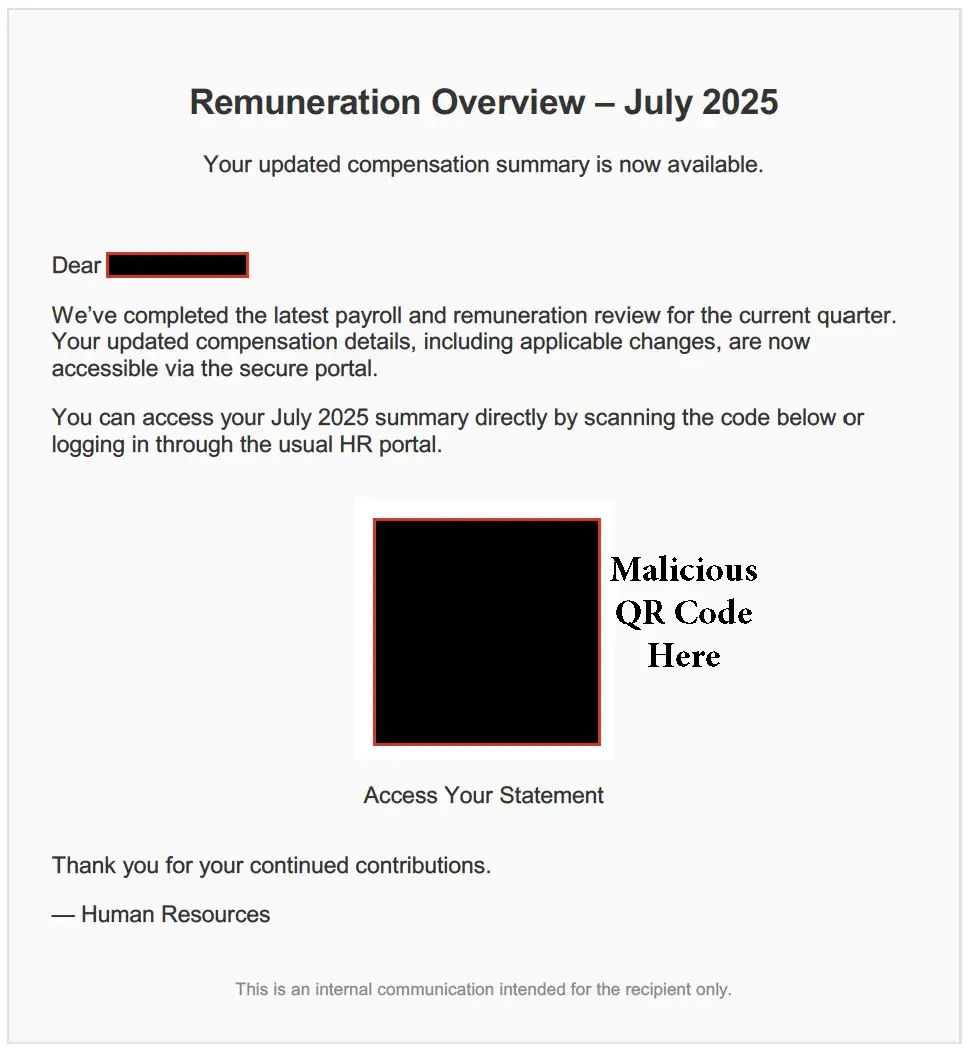
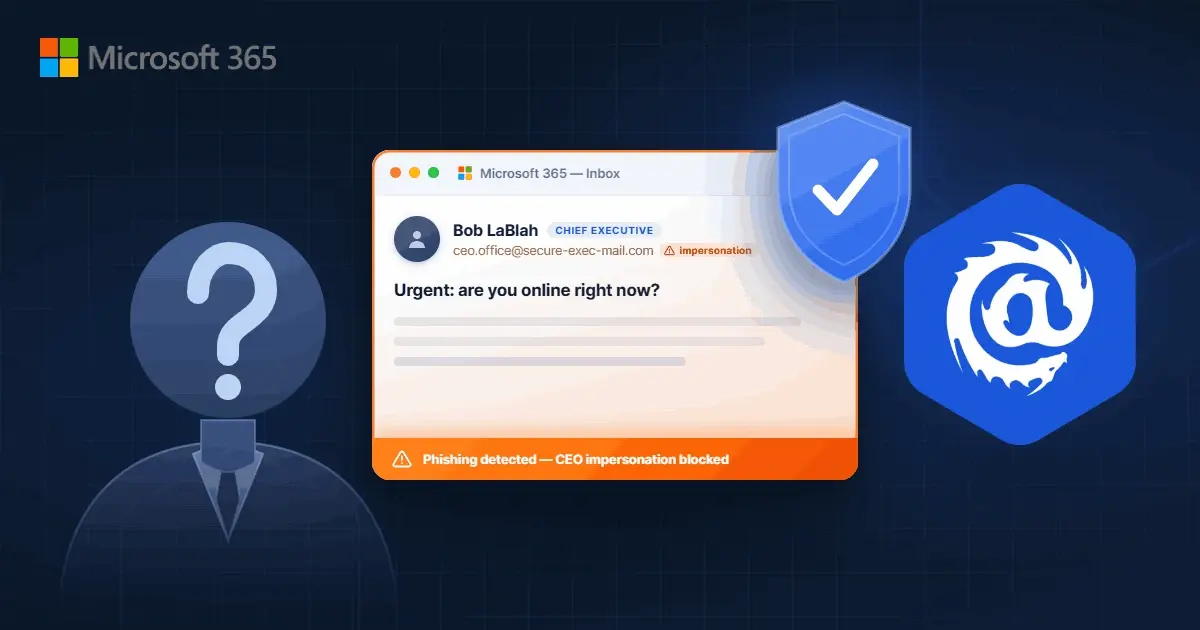
CEO impersonation attacks slip through native Microsoft 365 filters more often than most IT admins expect. Attackers spoof display names, register lookalike domains, and mimic communication patterns to trick employees into wiring funds or sharing credentials. IRONSCALES catches these threats by analyzing behavioral patterns at the mailbox level, filling the gaps that native protections leave open.
This guide walks you through seven steps to stop executive impersonation in your M365 tenant. You'll configure Defender for Office 365 anti-phishing policies, set up impersonation protection for specific executives, align your email authentication records, and establish tenant-wide remediation workflows. By the end, you'll have a layered defense that blocks display name spoofing before it reaches employee inboxes.
Spoofing vs. Impersonation: Why the Distinction Matters
Before diving into the steps, it helps to understand the two attack techniques this guide addresses. Spoofing forges the sender's exact email address (an attacker sends as ceo@yourcompany.com without authorization). Impersonation uses a lookalike domain (ceo@yourcompnay.com) or matches the executive's display name with a completely different address. DMARC and email authentication (Step 5) stop spoofing. Defender's impersonation protection, mailbox intelligence, and mail flow rules (Steps 1 through 4 and 6) stop impersonation. You need both layers.
According to the Verizon 2026 Data Breach Investigations Report, Social Engineering remains the third most common breach pattern, accounting for 16% of all confirmed breaches. The human element was present in 62% of breaches overall. BEC-style attacks represent roughly 3% of malicious emails blocked at the gateway, but they account for the largest share of financial losses by far.
Quick Guide: How to Stop CEO Impersonation in M365 in 7 Steps
- Enable User Impersonation Protection – Add executives and high-value targets to Defender's protected users list.
- Configure Domain Impersonation Protection – Protect your owned domains and add custom domains you frequently interact with.
- Turn On Mailbox Intelligence – Let Defender learn communication patterns to catch anomalies.
- Set Actions for Impersonation Detections – Quarantine or delete messages flagged as impersonation attempts.
- Align SPF, DKIM, and DMARC Records – Eliminate exact domain spoofing so attackers are forced into techniques your impersonation controls can catch.
- Create Mail Flow Rules for Display Name Spoofing – Block external emails using internal executive names.
- Automate Tenant-Wide Remediation – IRONSCALES clusters similar threats and removes them across all mailboxes with one click.
How to Block Executive Impersonation Attacks in M365
1. Enable User Impersonation Protection
Open the Microsoft Defender portal and navigate to Email & collaboration, then Policies & rules, then Threat policies, and select Anti-phishing. Create a custom anti-phishing policy or edit an existing one.
Under the Phishing threshold & protection page, toggle Enable users to protect. Click Manage senders and add executives by display name and email address. You can protect up to 350 users per policy.
Focus on your CEO, CFO, and anyone with wire transfer authority. Attackers target these roles because a single successful impersonation can cost hundreds of thousands of dollars.
2. Configure Domain Impersonation Protection
Domain impersonation differs from spoofing. Attackers register domains like c0ntoso.com (with a zero) to mimic contoso.com. These pass standard authentication checks because the lookalike domain has valid SPF and DKIM records.
On the same policy page, enable Include the domains I own to protect all your accepted domains. Then enable Include custom domains and add domains of partners, vendors, or subsidiaries you frequently receive email from.
Review the list quarterly. If you acquire a new company or onboard a new vendor, add their domain to the protected list before attackers exploit the gap.
3. Turn On Mailbox Intelligence
Mailbox intelligence builds a contact graph for each user based on historical communication patterns. When an email arrives from an unfamiliar sender using a familiar display name, Defender flags it as suspicious.
Enable both Mailbox intelligence and Enable intelligence for impersonation protection. This combination catches first-time senders who impersonate executives your employees have never emailed before.
Keep in mind that mailbox intelligence needs time to learn. Roll it out in stages, starting with high-risk departments like finance and HR, and monitor false positives during the first two weeks.
4. Set Actions for Impersonation Detections
Navigate to the Actions page. For each detection type (user impersonation, domain impersonation, and mailbox intelligence detections), select Quarantine the message. This prevents flagged emails from reaching inboxes while allowing administrators to review and release legitimate messages.
Assign a quarantine policy that defines what recipients can do with quarantined messages. The default policy (DefaultFullAccessPolicy) gives users full control, but you may want a stricter policy for impersonation attempts.
Enable safety tips so recipients see visual warnings when they receive emails from first-time contacts or addresses with unusual characters.
5. Align SPF, DKIM, and DMARC Records
Email authentication doesn't stop impersonation directly, but it eliminates the easiest attack vector: exact domain spoofing. With a strong DMARC policy in place, attackers can't forge your domain. That forces them into lookalike domains and display name tricks, which are easier for Defender's impersonation controls (Steps 1 through 4) to detect.
SPF lists authorized sending IP addresses. DKIM adds a cryptographic signature to outbound messages. DMARC tells receivers what to do when messages fail SPF or DKIM checks.
Publish a DMARC record with a policy of p=quarantine or p=reject. This stops attackers from spoofing your exact domain. In Defender, enable Honor DMARC record policy when the message is detected as spoof to respect sender DMARC policies on inbound mail.
Check your records with a DMARC analyzer tool. Misconfigured records can cause legitimate email to fail authentication, so test thoroughly before moving to a reject policy.
Go Deeper: Email Authentication Guide
SPF, DKIM, and DMARC are table stakes, but getting them right takes more than flipping a switch. Our 9-part Email Authentication Guide covers implementation, troubleshooting, and compliance from the ground up:
6. Create Mail Flow Rules for Display Name Spoofing
Display name spoofing happens when an attacker sets their email display name to match your CEO but sends from an unrelated external address. Native impersonation protection catches many variants, but a mail flow rule adds another layer.
In the Exchange Admin Center, create a transport rule with these conditions: the sender is located outside the organization, and use "A message header matches" with the From header and a text pattern containing the executive's display name (e.g., From header matches .*John Smith.*). Set the action to quarantine the message and notify the IT security team.
You'll need a separate rule (or regex alternation) for each executive you want to protect. For multiple names in one rule, use a regex pattern like .*(John Smith|Jane Doe|Bob Johnson).* in the header match.
Add exceptions for personal email addresses your executives use legitimately. Otherwise, you'll quarantine messages from their home accounts.
7. Automate Tenant-Wide Remediation
Manual remediation doesn't scale. If an impersonation email reaches 50 mailboxes, you need to remove it from all 50 before anyone clicks. IRONSCALES automates this entire workflow.
When IRONSCALES catches a CEO impersonation attempt, it clusters similar messages across your tenant and removes them in bulk. Themis, our AI virtual SOC, handles 99%+ of threats without human intervention, and your security team can review decisions in the IRONSCALES platform.
For organizations using Defender's Automated Investigation and Response (AIR), you can enable auto-remediation for malicious message clusters. Navigate to Settings, then Email & collaboration, then MDO automation settings, and select the cluster types to auto-remediate.
Why Do CEO Impersonation Attacks Bypass Native M365 Security?
Native Microsoft 365 security focuses on known malicious signatures, URLs, and attachments. CEO impersonation attacks contain none of these. The email body might read: "Are you available? I need an urgent wire transfer completed before end of day." No links. No attachments. Just text.
Attackers also exploit how email clients display sender information. Mobile apps often show only the display name, hiding the actual email address. An employee checking email on their phone sees "John Smith, CEO" and assumes the message is legitimate without noticing it came from john.smith.ceo@randomdomain.com. The Verizon 2026 DBIR found that mobile-centric phishing (SMS and voice) has a 40% higher success rate than email-based phishing in simulation campaigns, which underscores how dangerous these truncated mobile views are for impersonation attacks.
Pretexting (the interactive social engineering behind BEC) has also grown as an initial access vector, reaching 6% of all breaches in the 2026 DBIR dataset. These aren't spray-and-pray phishing campaigns. They're targeted, conversational attacks where the attacker builds rapport or creates urgency to extract a specific action from the victim.
IRONSCALES addresses this gap with behavioral AI that analyzes communication patterns, not just message content. It builds a baseline of how each executive communicates and flags deviations, like a request for funds from an address the recipient has never interacted with.
What Happens If CEO Impersonation Protection Is Not Configured?
Unconfigured impersonation protection leaves your organization exposed to business email compromise. According to the FBI's 2025 Internet Crime Report, BEC caused $3.04 billion in reported losses, making it one of the costliest cybercrime categories despite representing a relatively small percentage of total incidents.
Without protection, attackers can send emails that appear to come from your CEO directly to finance employees. These requests often create urgency ("I'm in a meeting and can't call, but this needs to happen now") to bypass normal approval processes.
Even one successful attack damages more than your bank account. Employees lose trust. Customers question your security posture. Regulatory bodies take notice. The reputational cost often exceeds the financial loss.
How IRONSCALES Helps You Stop CEO Impersonation Attacks
IRONSCALES connects to Microsoft 365 via API and deploys in minutes with no MX record changes. From the moment you connect, our AI starts learning your organization's communication patterns to catch the subtle anomalies that native filters miss.
When an impersonation attempt lands in a mailbox, IRONSCALES flags it, quarantines it, and clusters similar messages across your entire tenant. One-click remediation removes the threat from every affected inbox. This automated approach slashes remediation time from hours to seconds.
You also get dynamic warning banners that coach employees in real time. If someone receives a suspicious email, they see a clear alert explaining why the message was flagged. This turns every near-miss into a training moment.
Ready to see what's slipping past your current defenses? Request a demo and run a scan of your existing mailboxes to find impersonation threats already sitting in employee inboxes.
FAQs About How to Stop CEO Impersonation in Microsoft 365
What is CEO impersonation in Microsoft 365?
CEO impersonation occurs when an attacker sends email that appears to come from an executive, using display name spoofing or lookalike domains. IRONSCALES catches these attacks by analyzing sender behavior patterns, not just message content.
How do I enable impersonation protection in Defender for Office 365?
Navigate to the Microsoft Defender portal, open Anti-phishing policies, and enable user impersonation protection. Add executives to the protected users list. IRONSCALES adds a second layer by catching impersonation attempts at the mailbox level.
Does DMARC prevent CEO impersonation attacks?
DMARC prevents exact domain spoofing but does not stop lookalike domains or display name spoofing. You need impersonation protection and behavioral analysis (which IRONSCALES provides) to catch those attacks. For a full walkthrough on configuring email authentication, see our 9-part Email Authentication Guide.
How many users can I protect with impersonation protection?
Defender for Office 365 allows up to 350 protected users per anti-phishing policy. If you need to protect more, create additional policies. IRONSCALES extends protection to every mailbox in your tenant automatically.
What is the difference between spoofing and impersonation?
Spoofing forges the sender's exact email address (john@yourcompany.com when sent by an attacker). Impersonation uses a lookalike domain (john@yourcompnay.com) or matching display name with a different address. IRONSCALES detects both.
How does mailbox intelligence improve impersonation detection?
Mailbox intelligence learns who each user communicates with regularly. When someone impersonates a contact the user has never emailed, Defender flags the message. IRONSCALES enhances this with organization-wide behavioral baselines.
Can I automate remediation for impersonation attacks?
Yes. In Defender, enable auto-remediation for AIR. IRONSCALES takes this further by clustering and removing similar threats across all mailboxes with one click, remediating 99%+ of threats without human intervention.





/Blue%20Feature%20Flower%20Icons/gear%20head%20icon.svg)
/Misc%20Icons/icon-nav-credential-theft.svg)








/Leadership%20Headshots/Audian%20Paxson%20Headshot%201000x1000%20032026.webp?width=100&height=100&name=Audian%20Paxson%20Headshot%201000x1000%20032026.webp)



.png?width=50&height=50&name=Untitled%20-%20July%2030%2c%202026%20at%2014.53.38%20(3).png)



/Misc%20Icons/icon-red-teaming-agent-gradient-simple.svg)
/Misc%20Icons/icon-phishing-soc-agent-gradient-simple.webp?width=158&height=167&name=icon-phishing-soc-agent-gradient-simple.webp)
/Misc%20Icons/icon-phishing-simulation-agent-gradient-simple.svg)


/Misc%20Icons/icon-nav-encryption.svg)