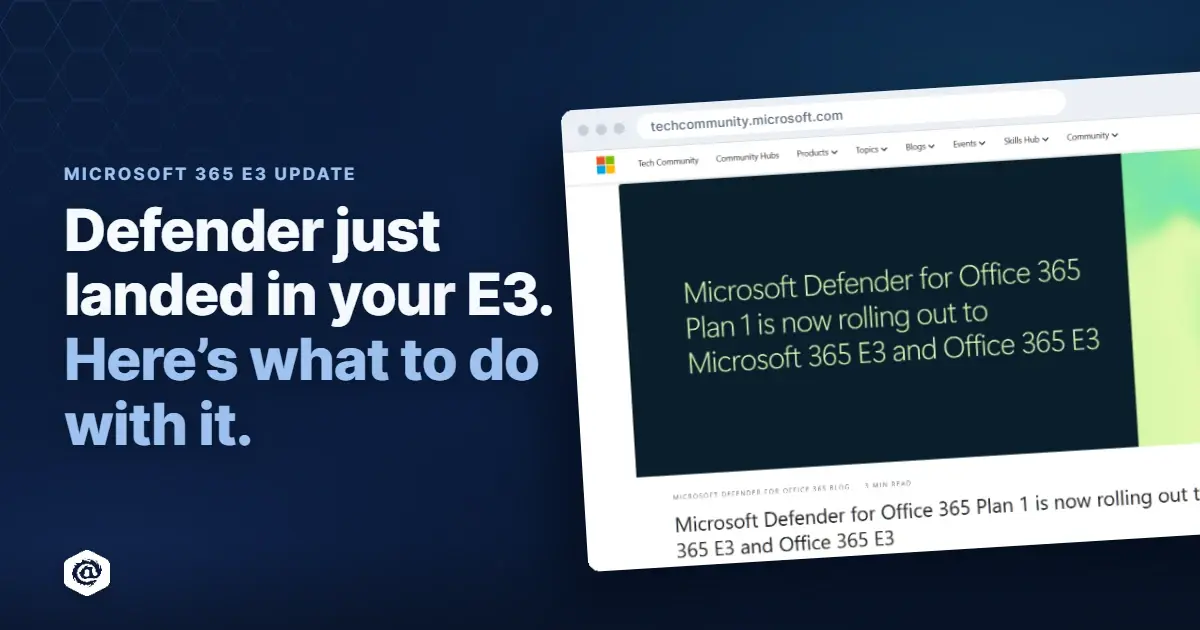
If you run email security on Microsoft 365 E3, you woke up to an upgrade you didn't ask for. As of July 1, Microsoft folds Defender for Office 365 Plan 1 into Microsoft 365 E3 and Office 365 E3, and it lands in tenants through August 1. Safe Links, Safe Attachments, and a stronger anti-phishing engine are switching on, in a lot of cases before anyone on your team touches a setting.
That's a real improvement, and I mean that. Microsoft just raised the baseline for millions of mailboxes. The part nobody puts in the announcement is that a license is not a configuration. Owning a security feature and having it tuned to actually stop attacks are two different things, and the gap between them is where most of the risk sits.
So there are really two questions worth asking. What do I do with what I just got? And where does it stop? A detailed guide follows, here is the order you should take.
First, turn on what you now own (and tune it)
- Tighten anti-phishing and impersonation protection. This is the biggest security gain for the least effort. Microsoft ships the default policy deliberately permissive so it won't flood every tenant with false positives, which means the protection you actually care about stays off until you switch it on. Turn on user impersonation protection for the people attackers target (your CEO, your CFO, anyone who can move money or change banking details), add domain impersonation, and revisit how you handle SPF, DKIM, and DMARC while you're in there.
- Switch on Safe Attachments with Dynamic Delivery. It detonates attachments in a sandbox before they reach the inbox, and Dynamic Delivery hands users the message body right away so nobody files a ticket wondering where their email went. Sandboxing is not a cure-all (password-protected archives and links to hosted malware still walk through), so treat it as one layer, not the answer.
- Turn on Safe Links, and know exactly what it does and doesn't do. It checks a link's reputation the moment someone clicks, which helps against pages that arm after delivery, and the click logs are genuinely useful in an investigation. Two honest caveats. It wraps every URL in a Microsoft domain, so users can no longer hover to see where a link really goes, and a fake login page behind that trusted-looking wrapper can read as safer rather than riskier. Attackers also engineer around it, serving Microsoft's scanner a clean page and the human the payload. It never sees a QR code either, because that's an image, not a link. Microsoft's own documentation calls Safe Links "one part of a broader protection stack," which is the right way to hold it. Turn it on. Just don't let your people treat a wrapped link as a safe one.
- Fix quarantine and turn on one-click reporting. A quarantine nobody can see is a help desk ticket waiting to happen, so set notifications and decide who can preview and release. Then enable the built-in Report Phishing button. Your people are your largest detection surface, and reporting a suspicious email should take one click, not a forward to a mailbox nobody watches.
- Measure what changes, and what gets through. Microsoft gives you the reports, so watch the trend on blocked mail, quarantined categories, and user-reported phishing over a month rather than a day. Then ask the harder question the dashboards won't answer for you, which is how much is still reaching inboxes after all of this is tuned. That number is the whole game.
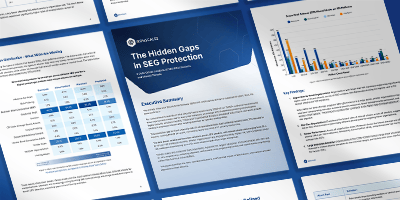
Oh... we wrote the full walkthrough, with the exact policies and screenshots, as a free configuration guide. No form, no gate. Check it out!
Then understand the shape of what you got
Microsoft's marketing blurs one distinction that your invoice makes clear. E3 gets Plan 1. It does not get Plan 2. Plan 1 is detection, which is Safe Links, Safe Attachments, and anti-phishing. Plan 2, which stays in E5, is where response and training live, including automated investigation and response, Threat Explorer at depth, and attack simulation training. So the change raises Microsoft's detection floor. It does not hand a lean team automated remediation, native simulation and training, or real investigation depth.
Even fully tuned, native protection has a shape. It's strong at the base, the high-volume commodity threats, and it thins out as attacks get more sophisticated and more personal. Gartner's December 2025 Magic Quadrant for Email Security lists ten capabilities a modern email security platform should deliver. We mapped Microsoft's native coverage against ours across all ten.
The pattern holds all the way down. Microsoft handles spam, and URL and attachment scanning, well, especially at the premium tiers.
It gets thin at the sophisticated layers, the account takeover attempts, DMARC management, awareness training, deepfake protection. Microsoft never covers all of any one capability, and the gap is widest exactly where the damage is worst.
IRONSCALES is the layer that fills it
Real defense in depth means every layer earns its place by catching something the others can't. Stack two tools that inspect the same mail the same way and you've added cost and a second console, not protection. A legacy secure email gateway sitting in front of Microsoft is exactly that kind of overlap, and now that Microsoft covers the baseline link and attachment scanning the gateway was doing, the redundancy is a lot harder to justify.
Our Adaptive AI sits on top of Microsoft through the API, deploys in minutes with no MX changes, and catches the personalized BEC, account takeover, and social engineering that slip past native detection. A human-in-the-loop sharpens every verdict, and our multi-engine scanning keeps re-checking links and files after delivery, not only at the moment of the click. Themis, our agentic SOC, automates the response your E3 plan still leaves sitting on your analysts' desks. Microsoft raising its floor doesn't touch any of that. It makes the case for the layer above it cleaner.
What to do this month
Tune your new Defender settings. Start with the configuration guide, work through the five steps above, and you'll be in better shape than most tenants that got the same upgrade and left it on defaults.
Then find out what's still getting through. For every 100 mailboxes, we catch 67.5 phishing emails a month that slip past legacy tools, Microsoft included. The only way to learn your own number is to look, so book a 90-day scan back and see what's sitting in your inboxes. You can't defend what you can't see, and right now Microsoft's new floor is showing you only half the room.





/Blue%20Feature%20Flower%20Icons/gear%20head%20icon.svg)
/Misc%20Icons/icon-nav-credential-theft.svg)






/Leadership%20Headshots/Audian%20Paxson%20Headshot%201000x1000%20032026.webp?width=100&height=100&name=Audian%20Paxson%20Headshot%201000x1000%20032026.webp)



.png?width=50&height=50&name=Untitled%20-%20July%2030%2c%202026%20at%2014.53.38%20(3).png)



/Misc%20Icons/icon-red-teaming-agent-gradient-simple.svg)
/Misc%20Icons/icon-phishing-soc-agent-gradient-simple.webp?width=158&height=167&name=icon-phishing-soc-agent-gradient-simple.webp)
/Misc%20Icons/icon-phishing-simulation-agent-gradient-simple.svg)


/Misc%20Icons/icon-nav-encryption.svg)