


.png?width=50&height=50&name=Untitled%20-%20July%2030%2c%202026%20at%2014.53.38%20(3).png)






/Misc%20Icons/icon-red-teaming-agent-gradient-simple.svg)
/Misc%20Icons/icon-phishing-soc-agent-gradient-simple.webp?width=158&height=167&name=icon-phishing-soc-agent-gradient-simple.webp)
/Misc%20Icons/icon-phishing-simulation-agent-gradient-simple.svg)


/Misc%20Icons/icon-nav-encryption.svg)


/Blue%20Feature%20Flower%20Icons/gear%20head%20icon.svg)
/Misc%20Icons/icon-nav-credential-theft.svg)






How to turn on the email security Microsoft just added to your plan, tune it so it helps instead of hurts, and see clearly where it stops.
Free. No form, no gate.
Microsoft folded Defender for Office 365 (MDO) Plan 1 into the Microsoft 365 E3 and Office 365 E3 licenses. Pricing changed on July 1, 2026, and the capabilities roll into tenants through August 1. For organizations already on E3, that's good news, because you can now use MDO's email security features at no extra add-on.
Having the license doesn't make your email more secure by default, though. Plenty of organizations own security features they've never enabled or left sitting at their default settings, and MDO's settings just joined that list. So the useful question after the change is a simple one. Now what?
Rather than clicking through every setting in Defender, which you should eventually do, start with the handful that make the biggest difference. These are the features attackers meet every day, and the ones most organizations either overlook or misconfigure.
1. Turn on Safe Links, and know what it does and doesn't do
Traditional email filtering only evaluates a message when it arrives, and attackers know it. They send an email with a link to a harmless page, wait for delivery, then swap the page for malicious content. Safe Links is built for exactly that move. Instead of trusting the URL in the incoming email, it rewrites the link and checks the destination's reputation in real time when the user clicks.
You'll find the policy under Email & Collaboration, then Policies & rules, then Threat policies, then Safe Links.
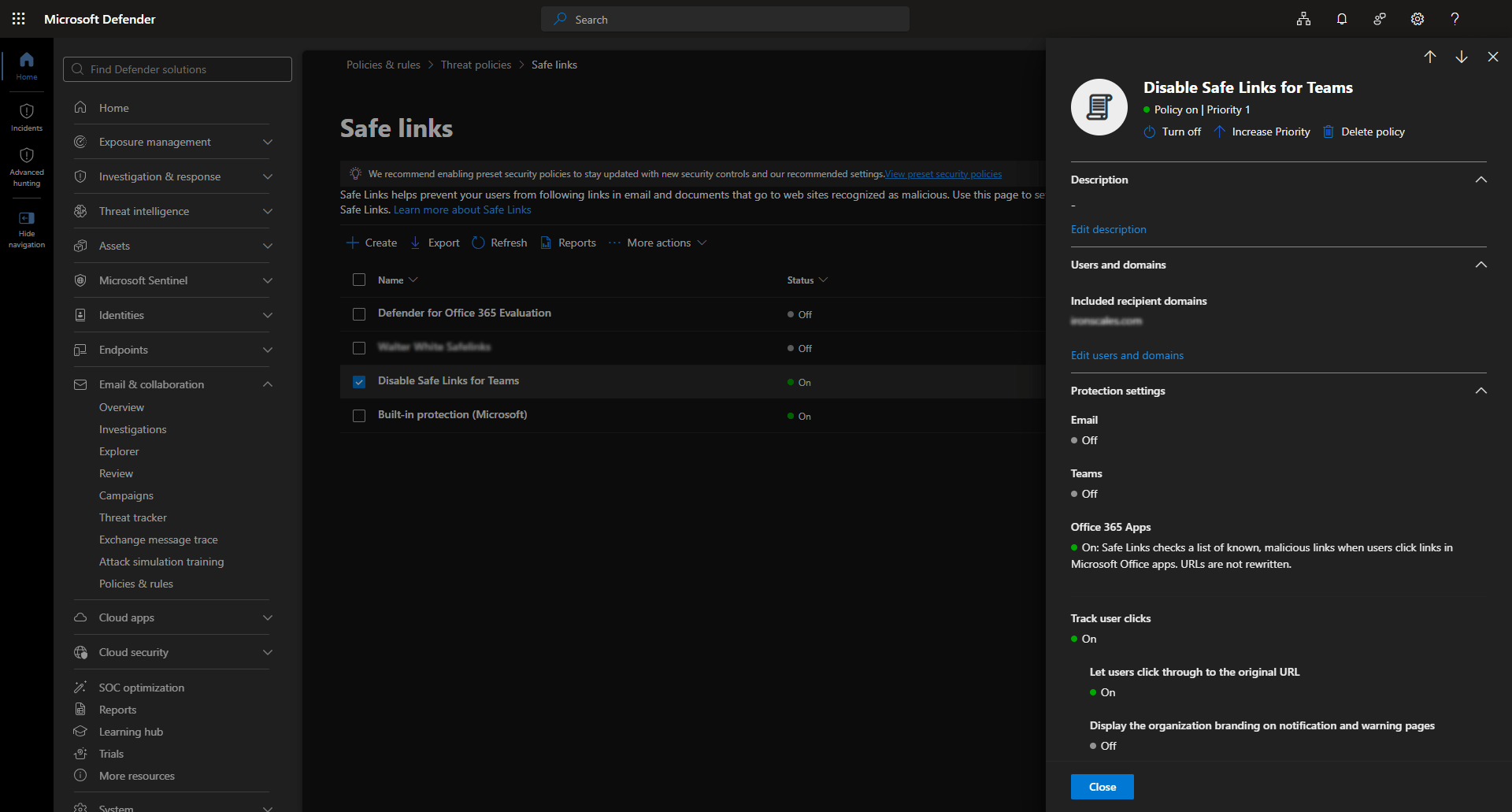
While you're in the policy, check a few settings. Enable URL rewriting for email messages. Enable click-time protection. Include all internal recipients unless you have a specific reason not to. And prevent users from clicking through the warning pages, because letting them ignore the verdict defeats the point of click-time protection in the first place. Don't assume the policy is on just because you now have Plan 1.
2. Turn on Safe Attachments
If Safe Links protects users from malicious websites, Safe Attachments does the same for files. When an email arrives with an attachment, MDO detonates the file in a malware sandbox before delivery, watching how it behaves when opened or executed instead of relying only on static signatures.
Configure it under Email & Collaboration, then Policies & rules, then Threat policies, then Safe Attachments.
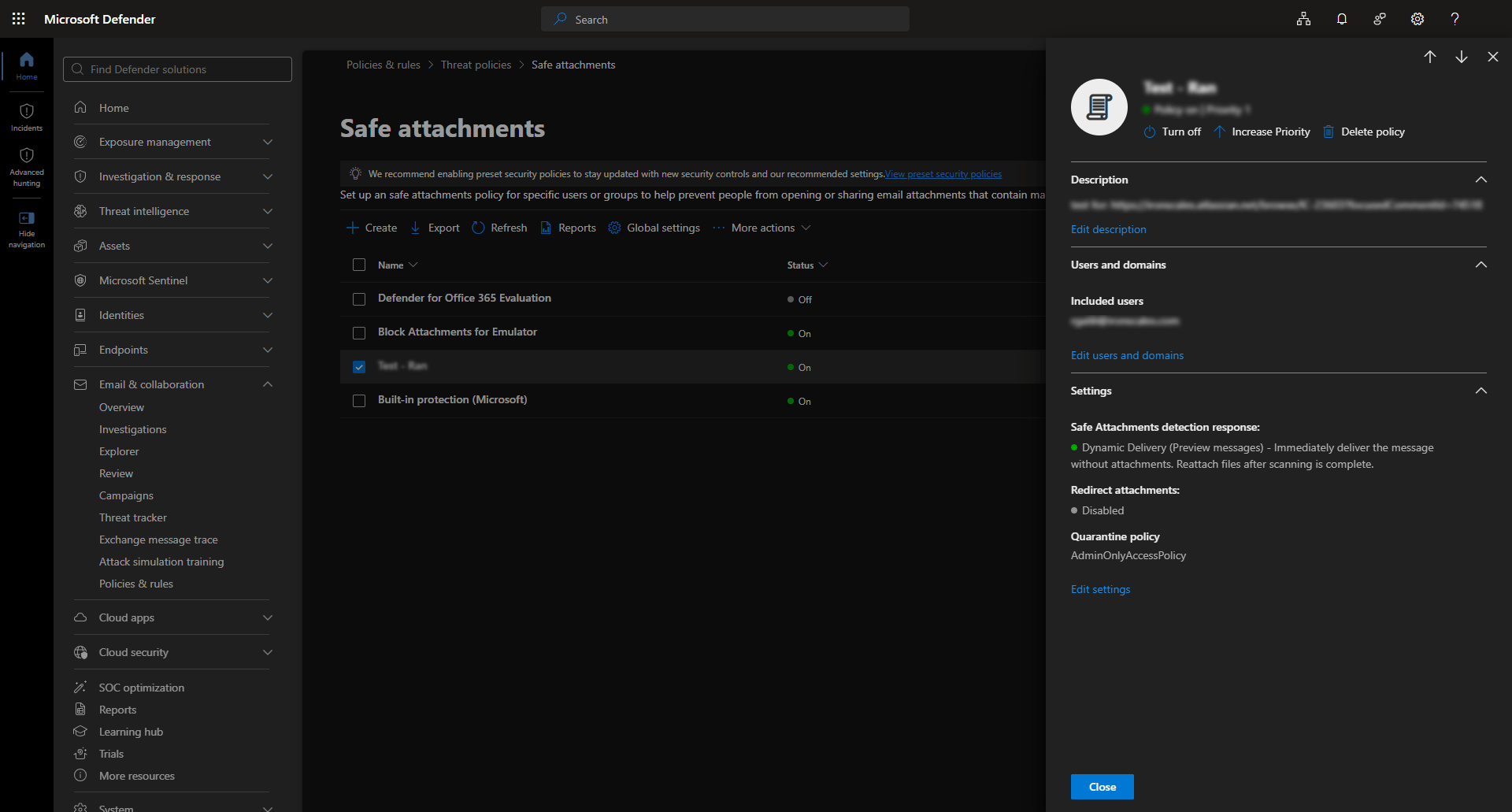
The setting that matters most is delivery mode, which controls when an attachment is scanned and delivered. For most organizations, Dynamic Delivery is the easiest call, a fair balance between usability and security. It delivers the message body immediately and inserts the attachment once scanning finishes, so users aren't left wondering where their email went while security still gets the sandbox analysis.
Remember that no sandbox catches everything. Password-protected archives, encrypted Office documents, and links to malware-hosting sites remain common delivery techniques. Safe Attachments is another layer, not a replacement for user awareness or endpoint protection.
3. Strengthen your anti-phishing policies
This is where you get the biggest security improvement for the least effort. Microsoft's anti-phishing engine has improved a lot over the last few years. It no longer just reads email content, it evaluates sender reputation, impersonation attempts, domain similarity, authentication failures, and behavioral signals, all drawing on Microsoft's broader threat intelligence.
The catch is that the default anti-phishing policy ships intentionally permissive, because Microsoft has to avoid drowning its whole customer base in false positives. Tuning it for your organization is on you and your security team. Find the policies under Email & Collaboration, then Policies & rules, then Threat policies, then Anti-phishing.
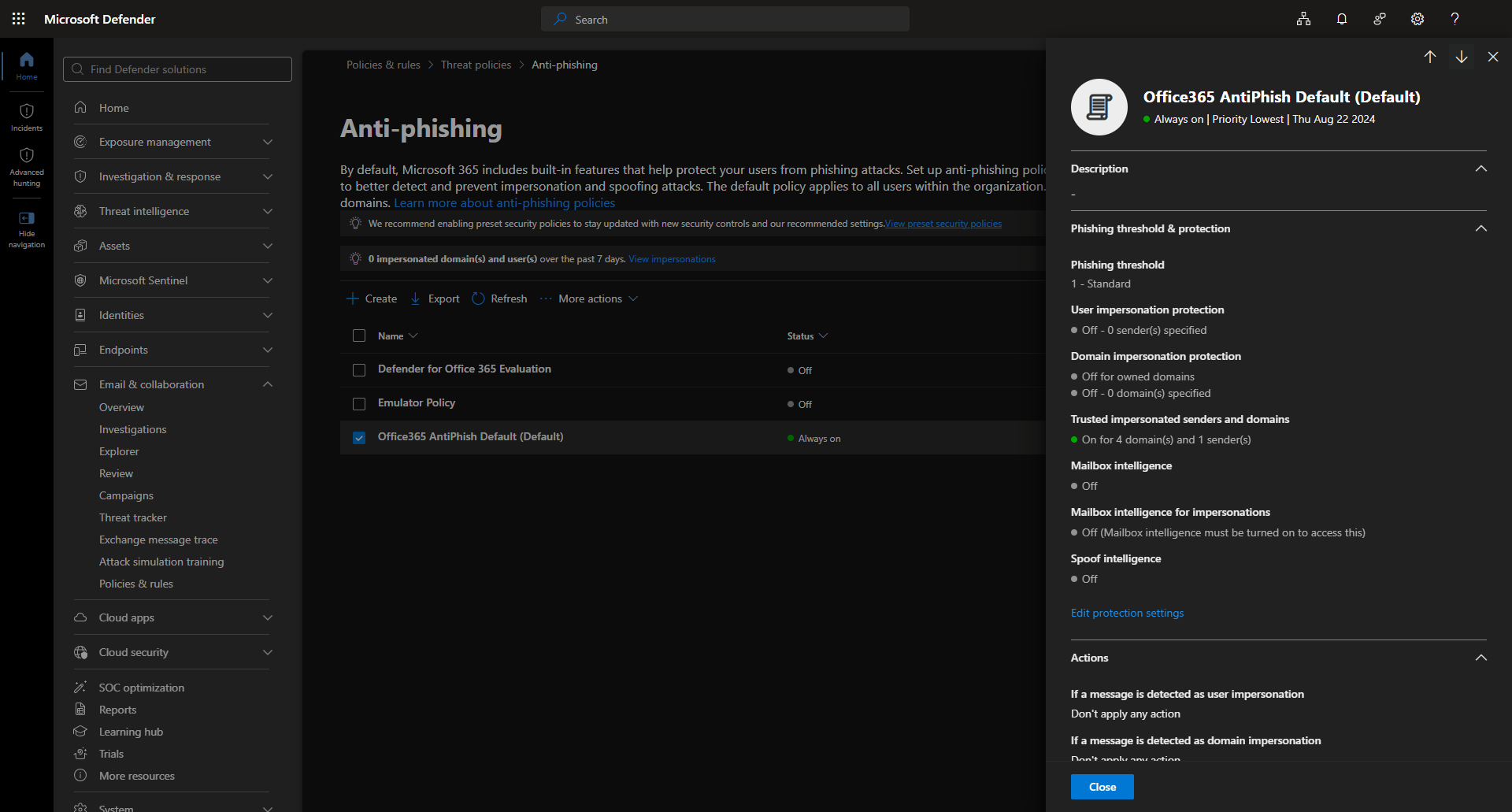
Start by enabling user impersonation protection, and think about who attackers actually target. Your CEO. Your CFO. Your finance team. HR. Anyone who can approve a payment or change banking details. Protect those users explicitly. Do the same for domain impersonation, since attackers love typosquatting domains that are hard to spot at a glance, and MDO can catch many of those attempts before they reach the inbox.
Review the authentication section too. If you still allow messages that fail both SPF and DKIM, or you aren't acting on DMARC results, now is a good time to revisit that. One warning. Your organization probably relies on third-party services that send invoices, marketing, HR notifications, and automated reports. Tightening anti-phishing policies without understanding those workflows generates help desk tickets, delays, and real business friction. Change the policies gradually and watch the impact rather than flipping everything on at once.
4. Review quarantine and turn on end-user reporting
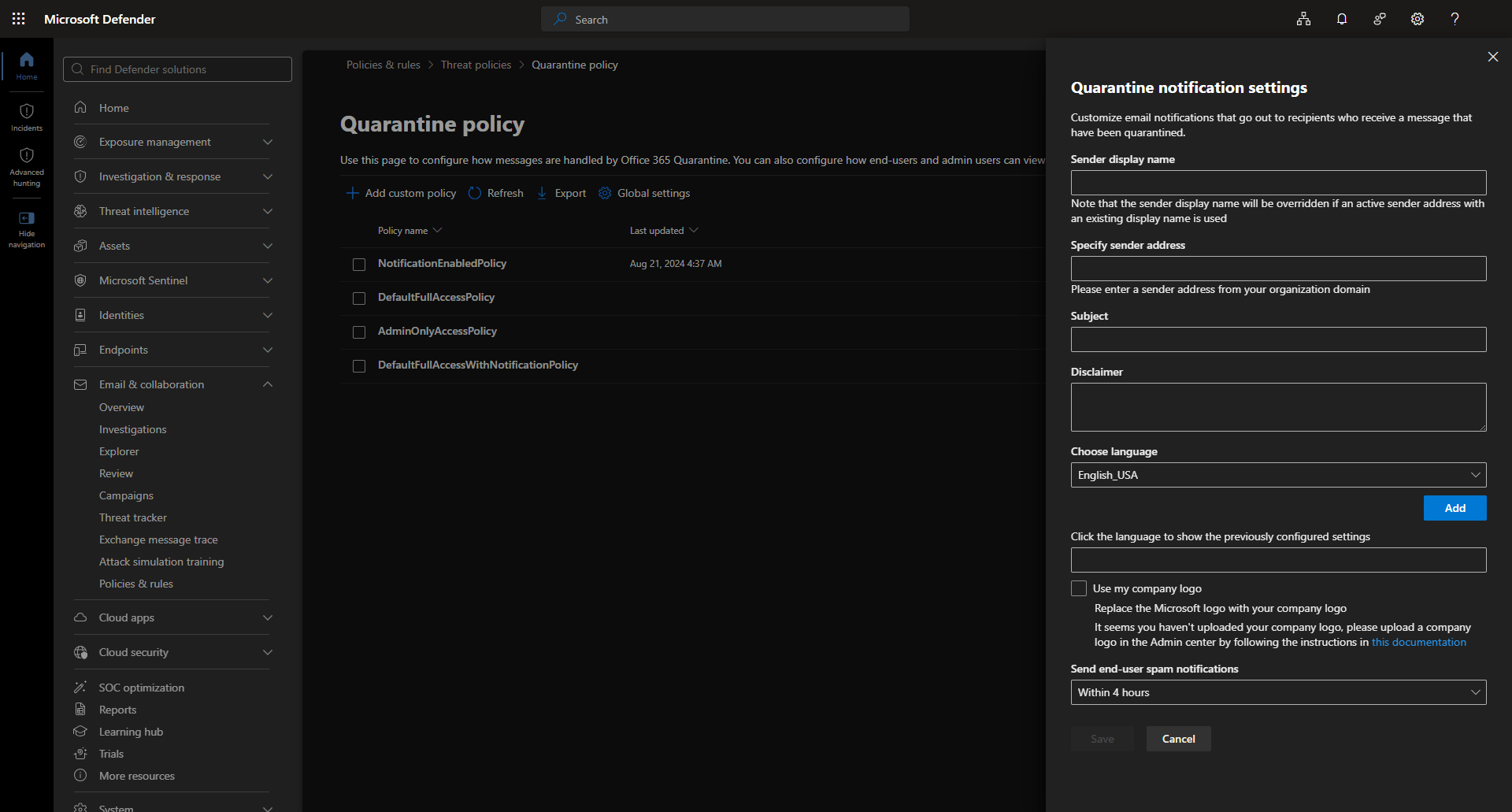
A quarantine is only useful if people know it's there. Users get fewer malicious emails, which is the point, but legitimate messages land in quarantine sometimes too, and without notifications nobody knows those emails exist. If you've ever had users swear an invoice "never arrived," this is often where it was hiding.
Review your quarantine policies and confirm who can preview quarantined messages, who can request release, and whether notifications are on. You'll find them under Email & Collaboration, then Policies & rules, then Threat policies, then Quarantine policy.
Then enable Microsoft's built-in Report Message and Report Phishing capability. Your end users are your largest detection surface, and eventually someone receives a phishing email that slips past every automated control. When that happens, reporting it should take one click, not a manually forwarded email or a guess at which mailbox the SOC watches.
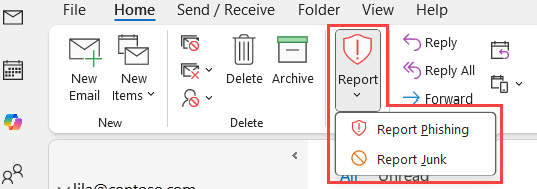
Be ready for some noise. The first few weeks after you turn on reporting usually bring a healthy mix of real phishing, newsletters people dislike, spam, and legitimate mail. That's normal. Over time your users learn what's worth reporting, and your analysts gain visibility into attacks that automated detection missed.
5. Measure what changes, and what gets through
Once Safe Links, Safe Attachments, anti-phishing, and quarantine are configured, one question remains. Did any of it actually improve your security? This is where a lot of deployments stop. The features get enabled, everyone moves on, and six months later nobody knows whether they're catching more phishing or just generating more alerts.
MDO gives you plenty of data to answer that. Start with the email security reports under Reports, then Email & collaboration.
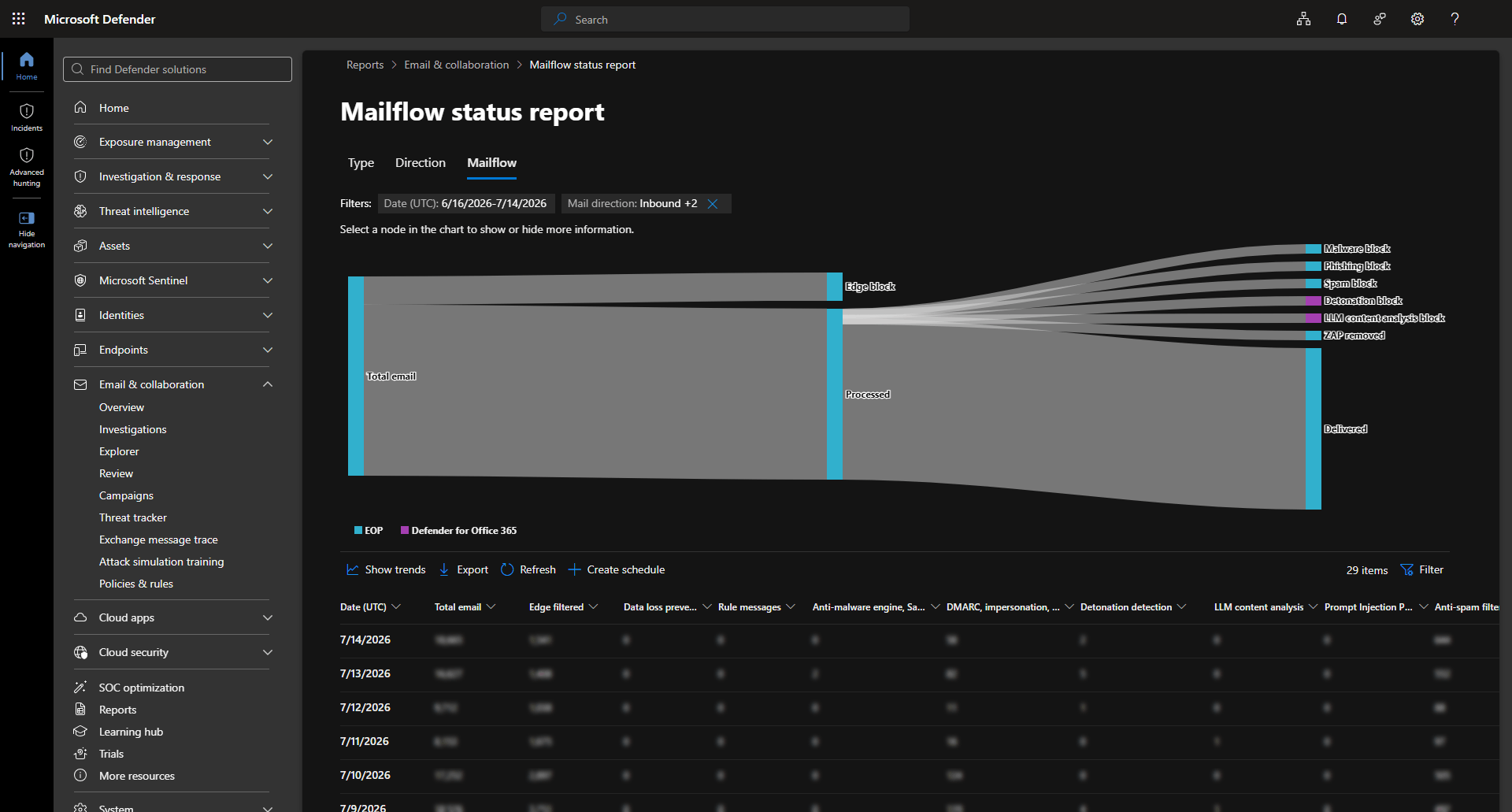
Watch trends rather than single numbers. One busy day tells you little, a month tells you a lot. Useful measures include malicious emails blocked before delivery, URLs blocked by Safe Links, malicious attachments detected, quarantined mail by category, false-positive submissions, user-reported phishing, and release requests from quarantine.
Read them together, not in isolation. If user-reported phishing suddenly climbs, that doesn't automatically mean your security got worse. It might just mean people are finally using the button you deployed last month. And don't skip executive reporting. Your CISO doesn't care how many Safe Links clicks got evaluated yesterday, they care about the trend. Show phishing attempts blocked over the quarter, malicious attachments that never reached users, and whether false positives are climbing or falling. Good reporting turns security from "we enabled a feature" into "here's the measurable risk reduction."
Then ask the harder question the built-in dashboards won't answer on their own. How much is still reaching inboxes after all of this is tuned? That number, the one that gets past a fully configured native stack, is the whole game. It's also the one that points to what comes next.
Where Plan 1 stops
Plan 1 is a real step up from Exchange Online Protection alone. For many organizations it delivers protections they should have had years ago. It's worth being clear about two different kinds of limits, though.
The first is the tier limit. Plan 1 is detection. Plan 2, which stays in E5, adds investigation and response, including automated investigation and response, Threat Explorer at depth, and attack simulation training. If your SOC investigates phishing regularly or supports compliance requirements that demand fast response, you'll notice those gaps. But Plan 2 buys you more investigation on the same detection model. It doesn't change what gets detected in the first place.
The second limit matters more, and no tier closes it. Even fully tuned, and even with Plan 2, native protection is strong against high-volume commodity threats and thins out as attacks get more targeted and more personal. The account takeover attempts. The text-only business email compromise. The vendor invoice fraud. The deepfake. Gartner's December 2025 Magic Quadrant for Email Security lists ten capabilities a modern email security platform should deliver, and the same pattern shows up across all ten.
Microsoft handles spam, and URL and attachment scanning, well, especially at the premium tiers. It gets thin at the sophisticated layers, exactly where the damage is worst. That's the shape a layer above Microsoft is built to fill.
What completes it
IRONSCALES sits on top of Microsoft through the API, deploys in minutes with no MX changes, and catches the targeted BEC, account takeover, and social engineering that slip past native detection. A human-in-the-loop sharpens every verdict, our multi-engine scanning keeps re-checking links and files after delivery, and Themis, our agentic SOC, automates the response your E3 plan still leaves on your analysts' desks.
Want the full argument for why layering beats redundancy? Read the blog. Want to see what's getting past your newly tuned Defender? Book a 90-day scan back to see what threats are sitting in your inboxes today.
The short version
Getting Plan 1 in E3 is a welcome change, and licensing is only the starting point. The real gains come from configuration and tuning. Safe Links, Safe Attachments, anti-phishing, and quarantine all need to be enabled or optimized before they protect anything. None of it is a major project. Most of it takes an afternoon to set, a few weeks to tune, and ongoing attention as threats change. Security isn't something you configure once and forget, and your Defender configuration shouldn't be either.
Related guides in this series
Continue Reading this Series
Chapter: 10 Microsoft Defender XDR Advanced Hunting Queries
Learn about Microsoft Defender XDR's Advanced Hunting Queries (AHQ) feature and how it can enhance your incident response capabilities.
Read chapterChapter: 9 M365 License Matrix
Learn about the various licensing models and security features offered by Microsoft 365 to help organizations choose the most appropriate plan for their security needs.
Read chapterChapter: 8 Microsoft Defender For Office 365
Learn about the latest email security features of Microsoft Defender for Office 365, including Explorer, Advanced Hunting Queries, and Automated Investigation and Response, to combat the evolving threat of phishing attacks.
Read chapterChapter: 7 Microsoft ASR
Learn about Microsoft ASR rules and their impact on security, including licensing requirements, log analysis, and considerations for activation.
Read chapterChapter: 6 M365 Business Premium Defender
Learn how the M365 Business Premium license provides essential cybersecurity components, such as Microsoft Intune and Defender for Endpoint, to enhance overall security defense for small and mid-sized organizations.
Read chapterChapter: 5 Microsoft Defender Licenses
Learn about Microsoft's advanced threat protection platform, Defender XDR, and its various components and licensing models to enhance overall security for your organization.
Read chapterChapter: 4 Exchange Online Protection vs Defender For Office 365
Learn about Microsoft's Exchange Online Protection and Defender for Office 365, their features, best practices, and how they compare in email security.
Read chapterChapter: 3 M365 Phishing Simulation
Learn about the alarming growth in volume and sophistication of phishing attacks and how Microsoft 365’s Defender for Endpoint features can help enhance cyber resilience.
Read chapterChapter: 2 Anti-Phishing Policies In Microsoft 365
Learn about the various anti-phishing features and policies in Microsoft Defender, including their roles, locations, and configuration possibilities.
Read chapterChapter: 1 Office 365 Email Security
Learn about the crucial email security features of Microsoft Defender for Office 365 (MDO) and how they can protect users from phishing attacks.
Read chapter