


.png?width=50&height=50&name=Untitled%20-%20July%2030%2c%202026%20at%2014.53.38%20(3).png)






/Misc%20Icons/icon-red-teaming-agent-gradient-simple.svg)
/Misc%20Icons/icon-phishing-soc-agent-gradient-simple.webp?width=158&height=167&name=icon-phishing-soc-agent-gradient-simple.webp)
/Misc%20Icons/icon-phishing-simulation-agent-gradient-simple.svg)


/Misc%20Icons/icon-nav-encryption.svg)


/Blue%20Feature%20Flower%20Icons/gear%20head%20icon.svg)
/Misc%20Icons/icon-nav-credential-theft.svg)









Learn how to enhance IR with Microsoft Defender XDR Advanced Hunting Queries
Facing an escalating tide of cyber threats, businesses are rallying behind Microsoft Defender XDR, a leading Extended Detection and Response (XDR) solution, for its comprehensive defense capabilities.
Microsoft Defender XDR is a central platform where Microsoft has merged many of its security solutions, such as Defender for Endpoint (MDE), Defender for Identity, etc., under one umbrella. Microsoft Defender XDR Advanced Hunting Queries (AHQ) is a powerful functionality in this XDR offering. AHQ feature lets users query different tables for security logs using the Kusto Query Language (KQL).
While potent, AHQ might have a steep KQL learning curve for users who are only familiar with SQL-like queries. Additionally, other issues like licensing or log retention period might influence your query results if you are unaware beforehand.
In this article, we will explore AHQ and its underlying KQL, how to use AHQ, and how to make it part of your incident response capabilities. We will also discuss its limitations and solutions to overcome them.
Summary of key Microsoft Defender XDR Advanced Hunting Queries concepts
The table below summarizes the AHQ concepts we will cover in this article.
| Concept | Description |
|---|---|
| AHQ introduction | Advanced hunting is how Microsoft Defender XDR queries security logs for different types of information using Kusto Query Language (KQL). |
| Database schema | Queries run against Microsoft's predefined set of tables and columns. |
| Applications in security | Threat hunting, incident investigation, email and phishing analysis, and detection engineering. |
| Tips to remember | KQL differs from SQL and has a learning curve. Watch the 30-day log retention window and the fact that Microsoft changes the schema over time. |
Microsoft Defender XDR Advanced Hunting Queries in-depth overview
For the rest of this article, we will present Microsoft Defender XDR Advanced Hunting Queries and underlying KQL, the tables and columns it can query, how to apply them to different security-related scenarios, and essential tips to remember when using AHQs.
AHQ introduction
AHQ is a feature in Microsoft Defender XDR that enables the IT security team to query different kinds of logs, as they would with a Security Information and Event Management (SIEM). However, unlike an (on-premises) SIEM solution, it has the added benefit that the IT team doesn’t need to configure devices to send specific logs to a specific remote location or come up with a logging standard. Everything is handled automatically when a device is enrolled in Defender XDR. This allows IT security teams to work effortlessly with various logs to support their investigations, ranging from login logs to URL clicks, network connections, file and process creation events, or AV alerts.
AHQ can be found under Hunting → Advanced Hunting in security.microsoft.com. The interface provides an overview of the database schema and its columns (as we will see in the next section) and an editor where you can design your own queries.
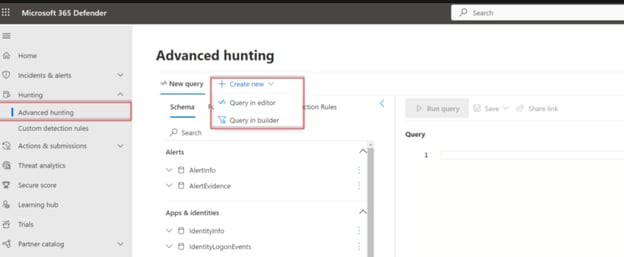
Advanced hunting query UI in MS Defender XDR
By clicking under “Create New → Query in editor”, you can start writing your queries while looking at the tables and their columns on the left. It allows you to query data from different Microsoft security products in the same query editor:
- Microsoft Defender for Office 365: important for investigating phishing campaigns and email URL clicks
- Microsoft Defender for Endpoint: important for incident response analysis, such as network connections, process creation, file or registry creation, etc.
- Microsoft Defender for Cloud Apps: cloud application usage, cloud user logins, etc.
- Microsoft Defender for Identity: activity logs from sensors installed on your on-premise AD.
Queries are written in Kusto Query Language (KQL), a querying language that provides the functionalities of SQL but with its own syntax. Microsoft created this querying language, and it is now open source. It is used in many Microsoft products, such as Azure Sentinel, Azure Data Explorer, Azure Monitor Data Analytics, Defender XDR, etc. Being specific to only Microsoft products, many users might be unfamiliar with it or its syntax. For example, an easy query to view all alerts with a severity “high” in the last 24 hours would be:
AlertInfo
| where Timestamp > ago(1d) and Severity == "High"
However, queries might get quite complex if you join tables with each other and apply “if” conditions (or “where” clause in SQL):
EmailPostDeliveryEvents
| where Timestamp > ago(7d)
//List malicious emails that were not zapped
| where ActionType has "ZAP" and ActionResult == "Error"
| project ZapTime = Timestamp, ActionType, NetworkMessageId, RecipientEmailAddress
//Get logon activity of recipients using RecipientEmailAddress and AccountUpn
| join kind=inner IdentityLogonEvents on $left.RecipientEmailAddress == $right.AccountUpn
| where Timestamp between ((ZapTime-24h) .. (ZapTime+24h))
//Show only pertinent info, such as account name, the app or service, protocol, the target device, and type of logon
| project ZapTime, ActionType, NetworkMessageId, RecipientEmailAddress, AccountUpn,
LogonTime = Timestamp, AccountDisplayName, Application, Protocol, DeviceName, LogonType
Database schema
To leverage the full potential of AHQ, it helps first to understand the tables and columns that can be queried. While there are currently 36 tables, each with its own columns, we will only mention some of the most important tables for security analysis:
- DeviceEvents records different security events, such as the creation of scheduled tasks, browser launches to open URLs, antivirus detections, etc.
- DeviceFileEvents records every file creation, modification, or deletion on a filesystem.
- DeviceNetworkEvents records every network connection to any IP or port started by any process. A recent update allows you to extract network connection metadata like you would with the popular Zeek network monitoring tool.
- DeviceProcessEvents records a rich amount of information about running processes, their parent process, full file path, hash, command line, parent command line, etc.
- DeviceRegistryEvents records registry key creations, modifications, and deletions. This has many uses, such as certain malware that hides in registry keys, e.g., for persistence using RUN keys.
- EmailEvents is one of the most important tables; it contains all email metadata for inbound and outbound emails, their delivery status, the email policy that was triggered, the number of attachments or URLs it contains, etc.
- EmailAttachmentInfo is useful for obtaining metadata for email attachments. While the above table can tell us how many attachments an email had, only by “joining” with this table information, such as attachment name, size, hash, etc., is it accessible.
- EmailUrlInfo is similar to the above, “joining” this table with EmailEvents, enables analysts to see the details of each URL that a specific email contains.
- UrlClickEvents → shows all URL clicks in emails, Teams, or other Office 365 apps. This is only possible if your organization has activated the Safe Links feature.
- IdentityLogonEvents records all authentication events in the (Azure/Entra) Active Directory environment, which is often used to investigate suspicious logins.
While each of these tables provides unique information, the hidden potential of AHQs is when you combine the information from different tables to have an overview of what is happening on your network or a specific endpoint, as we will see in the following section where we cover the application of AHQ to security.
Note that Microsoft changes the database schema frequently, and some of your queries might become outdated due to these changes. Always refer to Microsoft’s schema documentation to see if any tables are added/removed or if column names have changed.

Applications of AHQs in security
While AHQs have many uses for many different stakeholders, we will focus on their application in cybersecurity.
#1 Threat Hunting
Given the vast amount of information that Microsoft Defender XDR stores for your network and endpoints for 30 days, it makes it a perfect tool for conducting threat-hunting activities. While threat-hunting activities are limited to imagination, we can consider the simple activity of hunting for obfuscated PowerShell scripts, a common attacker technique. This, as well as attempting to deobfuscate the PowerShell code, can be done with a single KQL query in AHQ:
DeviceProcessEvents
| where InitiatingProcessFileName contains "powershell.exe" and ProcessCommandLine contains "-enc"
| extend b64 = extract("[A-Za-z0-9|+|=|/]{30,}", 0, ProcessCommandLine)
| extend utf8_decode=base64_decode_tostring(b64)
#2 Incident investigation
AHQ is one of the most important incident response tools for a security analyst. Given its massive amount of information for process creation, URL clicks, file or registry creation, login events, AV reports, email logs, etc., it becomes a precious source of logs for any incident. For example, imagine you discover an obfuscated PowerShell on one endpoint and would like to know if the malware infection is isolated to this one endpoint or if more computers are affected. You can run the following query to try and identify other infected hosts where the PowerShell script is present and executed:
search in (DeviceProcessEvents, DeviceNetworkEvents, DeviceFileEvents, DeviceImageLoadEvents, DeviceEvents, DeviceImageLoadEvents, EmailEvents, EmailAttachmentInfo,EmailUrlInfo) "malicious_ps.ps1"
| where Timestamp > ago(1d) and ProcessCommandLine contains "powershell.exe"
#3 Email security & phishing investigations
During incident response for phishing attacks, you should also check for other recipients of the same email based on the subject, sender name, sender domain, or any other property that is used to identify that phishing campaign uniquely. All this can be easily achieved with AHQs:
EmailEvents
| where (Subject contains "bitcoin" and SenderFromAddress =~ "attacker@attacker.com" )
| where Timestamp > ago(5d)
| join EmailUrlInfo on NetworkMessageId
| project Timestamp, SenderMailFromAddress, SenderFromAddress, SenderIPv4, RecipientEmailAddress, Subject, AttachmentCount, UrlCount, Url, DeliveryAction, DeliveryLocation, AuthenticationDetails, ThreatTypes, ThreatNames
| sort by Timestamp desc
You can also go one step further and check for emails that Microsoft considered malicious but, for some reason, couldn’t successfully ZAP (zero-hour auto purge):
EmailPostDeliveryEvents
| where Timestamp > ago(7d)
//List malicious emails that were not zapped
| where ActionType has "ZAP" and ActionResult == "Error"
| project ZapTime = Timestamp, ActionType, NetworkMessageId , RecipientEmailAddress
//Get logon activity of recipients using RecipientEmailAddress and AccountUpn
| join kind=inner IdentityLogonEvents on $left.RecipientEmailAddress == $right.AccountUpn
| where Timestamp between ((ZapTime-24h) .. (ZapTime+24h))
//Show only pertinent info, such as account name, the app or service, protocol, the target device, and type of logon
| project ZapTime, ActionType, NetworkMessageId , RecipientEmailAddress, AccountUpn,
LogonTime = Timestamp, AccountDisplayName, Application, Protocol, DeviceName, LogonType
Finally, you can also create AHQs that display results in graphs, plots, or pie charts. This can be a great feature to enhance the static and limited reports that Microsoft provides for phishing simulations:
EmailEvents
| where ThreatTypes has "Phish"
| summarize Count = count() by SenderFromDomain
| top 10 by Count
| render piechart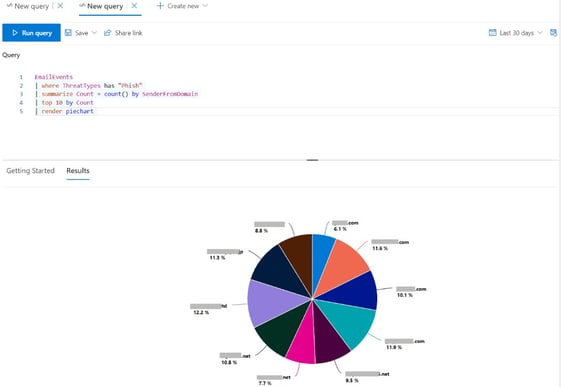
While this might be cumbersome and not easily doable for AHQ beginners, you can always opt for easier phishing simulation solutions that not only allow you to easily set up phishing simulations but also provide you with flexible dashboards and graphs to measure the results of a phishing simulation.
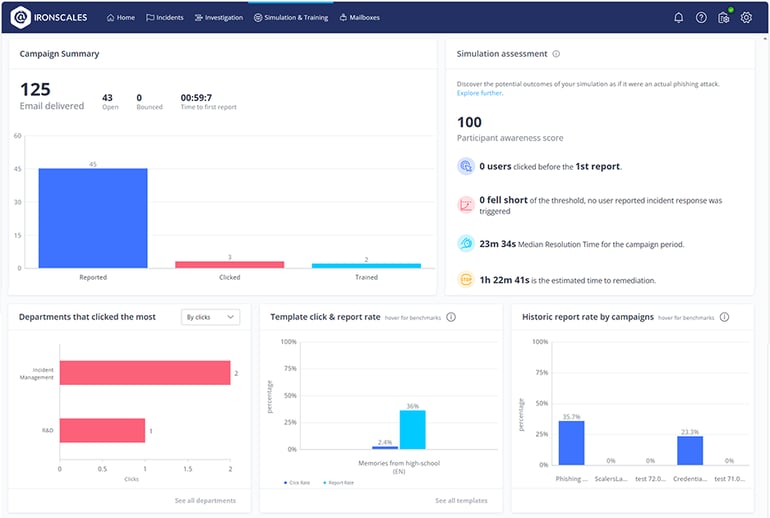
Furthermore, bundled with a wide variety of security awareness training, you can ensure that employees who fail the phishing simulation are assigned adequate training to learn from their mistakes.
#4 Detection engineering
Although AHQs are typically used to search for data in real time, you can also schedule queries to be executed periodically (every hour, 3 hours, 12 hours, 24 hours) via the custom detection rules. For example, given a malware infection, you could periodically run a KQL query to check for process creation events that contain malware.exe. Alternatively, given an ongoing phishing campaign, you can create another detection with a KQL query to periodically search for emails with certain malicious elements and get email alerts if the scheduled query finds something. For example, the below query will alert you if any endpoint triggers more than 5 AV alerts during 24 hours:
DeviceEvents
| where ingestion_time() > ago(1d)
| where ActionType == "AntivirusDetection"
| summarize (Timestamp, ReportId)=arg_max(Timestamp, ReportId), count() by DeviceId
| where count_ > 5

Important AHQ tips to remember
While AHQ might be a powerful tool in your arsenal, there are a few things you should keep in mind:
- Know the log retention period: You can only query logs for the last 30 days. Any data beyond that point cannot be queried, regardless of your licensing plan. That is why exporting and saving query results during incident response is recommended. This way, you can still review data from old incidents even if they are needed months later.
- Account for KQL’s steep learning curve: While KQL might be intimidating at first, Microsoft provides excellent learning material and documentation for it. Additionally, you can benefit from “shared queries” that your other teammates might have developed or even “community queries” that the community has created and shared to get you started with concrete examples.
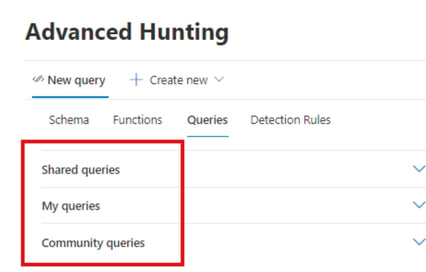
Choose between different already-prepared KQL queries to get you started.
Finally, if you would like to learn how to use KQL step by step, Microsoft provides the query builder, which allows you, instead of typing the KQL query, to choose options or the right syntax from dropdown menus. With time, this can help you familiarize yourself with the syntax and how KQL works and then move on to writing your own queries.
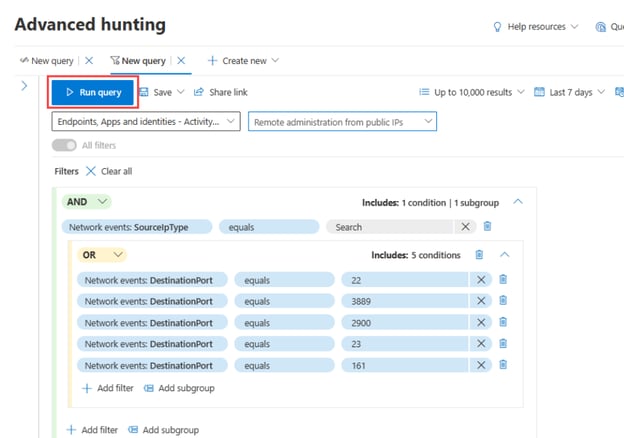
Query builder feature of AHQ in MS Defender XDR
- Be aware of changing database schemas: Unfortunately, Microsoft is known to change the names of its products often and without notice. For example, Microsoft Defender for Endpoint (MDE) was previously named Microsoft Defender Advanced Threat Protection (ATP), and it contained a database schema different from the one you find in MDE today. Additionally, some of the table names have changed throughout the years, even in MDE. That is why, to avoid frustration while writing KQL queries (especially during IR), always check the database schema to ensure that the tables and columns you are querying have not changed. This might save you precious time during incident response.

Related guides in this series
- Microsoft Defender for Office 365: the full Plan 1 vs Plan 2 feature breakdown.
- Anti-phishing policies in Microsoft 365: the controls that generate much of the email telemetry you hunt over.
- Microsoft Defender licenses: how the Defender family is licensed across plans.
- Defender for Office 365 Plan 1 comes to E3: what the July 2026 change includes.
Conclusion
Microsoft Defender XDR Advanced Hunting Queries is an important security feature in Microsoft Defender XDR. Its underlying KQL, available tables to query for information, and especially how teams can apply it to security and incident response make it useful in incident response. However, it has limitations, such as the log retention time, changing structure, or the difficulty of learning KQL.
Despite these limitations, AHQ is a powerful weapon for security analysts to have in their arsenal to combat cyber attacks and the constantly rising phishing attacks and complement other advanced email security solutions.
Continue Reading this Series
Chapter: 10 Microsoft Defender XDR Advanced Hunting Queries
Learn about Microsoft Defender XDR's Advanced Hunting Queries (AHQ) feature and how it can enhance your incident response capabilities.
Read chapterChapter: 9 M365 License Matrix
Learn about the various licensing models and security features offered by Microsoft 365 to help organizations choose the most appropriate plan for their security needs.
Read chapterChapter: 8 Microsoft Defender For Office 365
Learn about the latest email security features of Microsoft Defender for Office 365, including Explorer, Advanced Hunting Queries, and Automated Investigation and Response, to combat the evolving threat of phishing attacks.
Read chapterChapter: 7 Microsoft ASR
Learn about Microsoft ASR rules and their impact on security, including licensing requirements, log analysis, and considerations for activation.
Read chapterChapter: 6 M365 Business Premium Defender
Learn how the M365 Business Premium license provides essential cybersecurity components, such as Microsoft Intune and Defender for Endpoint, to enhance overall security defense for small and mid-sized organizations.
Read chapterChapter: 5 Microsoft Defender Licenses
Learn about Microsoft's advanced threat protection platform, Defender XDR, and its various components and licensing models to enhance overall security for your organization.
Read chapterChapter: 4 Exchange Online Protection vs Defender For Office 365
Learn about Microsoft's Exchange Online Protection and Defender for Office 365, their features, best practices, and how they compare in email security.
Read chapterChapter: 3 M365 Phishing Simulation
Learn about the alarming growth in volume and sophistication of phishing attacks and how Microsoft 365’s Defender for Endpoint features can help enhance cyber resilience.
Read chapterChapter: 2 Anti-Phishing Policies In Microsoft 365
Learn about the various anti-phishing features and policies in Microsoft Defender, including their roles, locations, and configuration possibilities.
Read chapterChapter: 1 Office 365 Email Security
Learn about the crucial email security features of Microsoft Defender for Office 365 (MDO) and how they can protect users from phishing attacks.
Read chapter